Converting clips
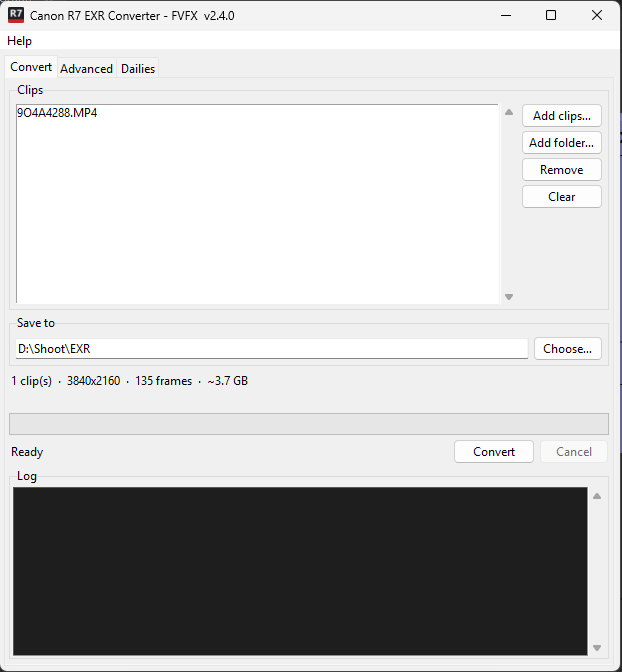
- Click Add clips… to pick files, or Add folder… to add every video in a folder. Remove and Clear take clips off the list.
- Check the Save to folder. It defaults to an
EXRfolder next to the first clip; click Choose… to change it. - Click Convert. Progress shows in the bar and the log, and a message appears when all clips are done, offering to open the folder.
The line under the folder shows the number of clips, resolution, total frames and the estimated size on disk before you start. 4K EXRs are large, at about 3.7 GB for every 5 seconds of footage, so check that the drive has room.
Cancel stops after the frame being written. Frames already written stay on disk.
Use the original camera files
Convert the .MP4 files straight off the card. Clips that were trimmed or
re-exported in another program lose the Canon metadata that tells the
converter which colour space the camera used.
Output
Each clip gets its own folder, named after the clip:
EXR\9O4A4288\9O4A4288.0001.exr
EXR\9O4A4288\9O4A4288.0002.exr
…
If ProRes is switched on (Advanced settings), a
9O4A4288.mov is written next to the folder.
Each EXR carries the clip's frame rate, SMPTE timecode (counting up from the clip's start timecode), camera and lens model, colour space chromaticities, and a comment recording the conversion.
Existing files are overwritten
Converting the same clip into the same folder again replaces the frames without asking.
Next: open the frames in Nuke.